
Vitrium Vault
- Protect PDF documents (other formats coming soon)
- Apply dynamic, user-identifying watermarks
- Set up multiple data rooms / portals from a single account
- Customize each data room / portal with specific branding
- Add your NDA or other agreement to the login page
- Assign different admin users to each portal
- Upload different folders and content to each portal
- Assign users or groups with permissions to content
- Choose from over 20 different DRM controls including print & copy controls, device limits, expiry dates, IP address limits, country or regional restrictions, and more
- Track all admin users’ activity across your account & portals
- Track the end users’ activity in each portal and gain insights about what content they’re viewing and how often
Vitrium Security
- Protect your documents, images, video and audio content
- Convert video & audio files to a secure streaming format
- Apply dynamic, user-identifying watermarks
- Assign different DRM policies to different users or groups
- Distribute content individually via secure web links, via a custom-branded portal (1 portal per account only), or through a 3rd party system such as an LMS, CMS, eCommerce, etc.
- Integrate with a wide variety of 3rd party systems
- Enable single sign-on (SSO) access with OAuth2.0,
SAML2.0 or other 3rd party identity providers - Automate the content protection process with APIs
- Use as a SaaS system or install on your environment
Compare Plans
| Content Formats To Protect | Vitrium Vault | Vitrium Security |
|---|---|---|
| Protection of PDF documents | ||
| Protection of Word & Excel documents1 | ||
| Protection of images | ||
| Protection of videos & audio2 | ||
| Encrypted Content Formats | Vitrium Vault | Vitrium Security |
| Deliver content via a secure web viewer | ||
| Deliver content via a downloadable protected PDF | ||
| Deliver content via a secure streaming video or audio player | ||
| DRM Protection & Controls | Vitrium Vault | Vitrium Security |
| Assign different DRM policies to different users | ||
| Prevent printing, downloading & copying | ||
| Set expiry dates or time-based controls | ||
| Limit screen capture | ||
| Set device limits or browser limits | ||
| Set open limits, print limits, or IP address limits | ||
| Control access based on IP address, country or state | ||
| Deliver content as Full DRM or Social DRM3 | ||
| Watermark Controls | Vitrium Vault | Vitrium Security |
| Apply user-identifying dynamic watermarks | ||
| Apply multiple watermarks to content | ||
| Change watermark font, color, alignment & placement | ||
| Preview your watermark as you create it | ||
| Portal / Data Room Management | Vitrium Vault | Vitrium Security |
| Create a customized portal or data room | ||
| Customize the portal with a logo, colors, and images | ||
| Preview your portal design as you create it | ||
| Allow 2-way flow of content between admins and end users | ||
| Create multiple data rooms from a single account | ||
| Set up an NDA or Terms between data rooms and end users | ||
| Licensed Content Distribution | Vitrium Vault | Vitrium Security |
| Distribute content directly to end users | ||
| Have your clients or partners distribute content to their users | ||
| Assign portal admins to add end users to their portal / data room | ||
| Web Viewer Capabilities | Vitrium Vault | Vitrium Security |
| Deliver content through a zero-footprint HTML web viewer | ||
| Decide which features to show on the web viewer toolbar | ||
| Allow users to view other users’ annotations or filled-in form data | ||
| Collaboration Capabilities | Vitrium Vault | Vitrium Security |
| Edit Word documents in a secure environment | ||
| Edit Excel spreadsheets in a secure environment | ||
| User Authentication & Licensing Controls | Vitrium Vault | Vitrium Security |
| Allow users to create their own password | ||
| Apply different roles to both admin and end users | ||
| Allow users to authenticate via an access code | ||
| Admins set a password for users to authenticate with | ||
| Single sign-on (SSO) access with Microsoft, Google, or Salesforce4 | ||
| Single sign-on (SSO) access with other 3rd party systems or IdPs5 | ||
| Analytics & Tracking | Vitrium Vault | Vitrium Security |
| Track detailed user activity data in your account & all portals | ||
| View key metrics at a glance for user activity | ||
| View a detailed admin activity log | ||
| Access document read-through-rate and time spent reports | ||
| Access video view-rate and time spent reports | ||
| Integration & Deployment | Vitrium Vault | Vitrium Security |
| Integrate Vitrium with 3rd party systems via REST APIs5 | ||
| Use Vitrium’s SaaS offering which is hosted on Microsoft Azure | ||
| Install Vitrium software on your environment (on-prem option) |
- Vitrium Security converts Word & Excel documents to a secure web viewer format. For Excel, the web viewer will inheret whatever page settings were applied to the original file. Vitrium Vault will display Excel files in a Spreadsheet Viewer which has a more realistic “Excel” feeling.
- Video and audio protection requires an additional charge so be sure to inform your Vitrium sales rep before they provide you a quote.
- ‘Full DRM’ requires a user to authenticate first to get access to content and you can take advantage of every DRM policy that Vitrium offers.’ Social DRM’ content does not require user authentication at all, but you can apply some DRM controls.
- Users must be in Vitrium in order for them to authenticate via their Microsoft, Google or Salesforce account. Users can be added manually or via CSV import. You can also connect Vitrium to a 3rd party system using APIs or Vitrium’s External Service. Reach out to your Vitrium sales rep to learn more.
- There are a few different ways for Vitrium to connect to 3rd party systems. Request a technical call with your Vitrium sales rep to learn more.
Testimonials
Client Stories and Experiences
“
If you have to choose between Vitrium and another company, I suggest going with Vitrium. We have peace of mind knowing our valuable intellectual property is protected with Vitrium.

— Rocco Cretacci
“
Vitrium is easy to use and has a high level of customization. It is constantly evolving to be a better product.

— Josh Cherry
“
With the need to go online for class delivery, Vitrium enables us to protect the IP of our teaching & learning materials.

— Lubna Alsagoff
The problem is usually caused by proxy/firewall that interrupts the communication between the web viewer content (or Adobe program) and the authentication server.
To resolve this issue, ask your IT department to whitelist the domain protectedpdf.com on port 443 (https).
If the customer who sent you the content is using their company domain (i.e. view.companydomain.com), then ask your IT department to whitelist that domain on the same port 443 (https).
For customers on our Canadian server, you will need to ask the IT department to whitelist the domain vitrium.com on port 443 (https).
Why proxy servers affect the process:
Proxy servers are designed to protect your organization from unwanted viruses, malware, and other phishing-type schemes. However, some types of communication is warranted, such as the content you’re trying to access from a legitimate and trusted source.
Proxy server required configuration changes:
- The proxy must ALLOW direct communication
- With the DNS address api.protectedpdf.com and docs-ca.vitrium.com
- On ports 443
Firewall required configuration changes:
- Remove any blocks in Norton or other firewall software for
- The firewall must ALLOW communication with
Adobe Reader/Acrobat Trust Manager configuration changes:
- Open Adobe Reader/Acrobat
- From the top menu bar, select Edit > Preferences
- Under Categories, click Trust Manager
- Click the Change Settings button
- Remove any blocks to https://api.protectedpdf.com/ or https://docs-ca.vitrium.com/
- Allow communication with https://api.protectedpdf.com/ or https://docs-ca.vitrium.com/
How to check for a proxy server:
- Click on the Start Menu and open Settings
- Select Network & Internet > Proxy
- Under Manual proxy setup, check to see if the “Use a proxy server” box is selected
Special consideration:
- Content providers have the option to use their own domain name. In those cases, you should contact your content provider and whitelist their domain name instead.
Navigate to the Vitrium dashboard and go to Settings > Content Settings > Advanced Options. Ensure the feature ‘Disable Image Optimization in Web Viewer’ is enabled.
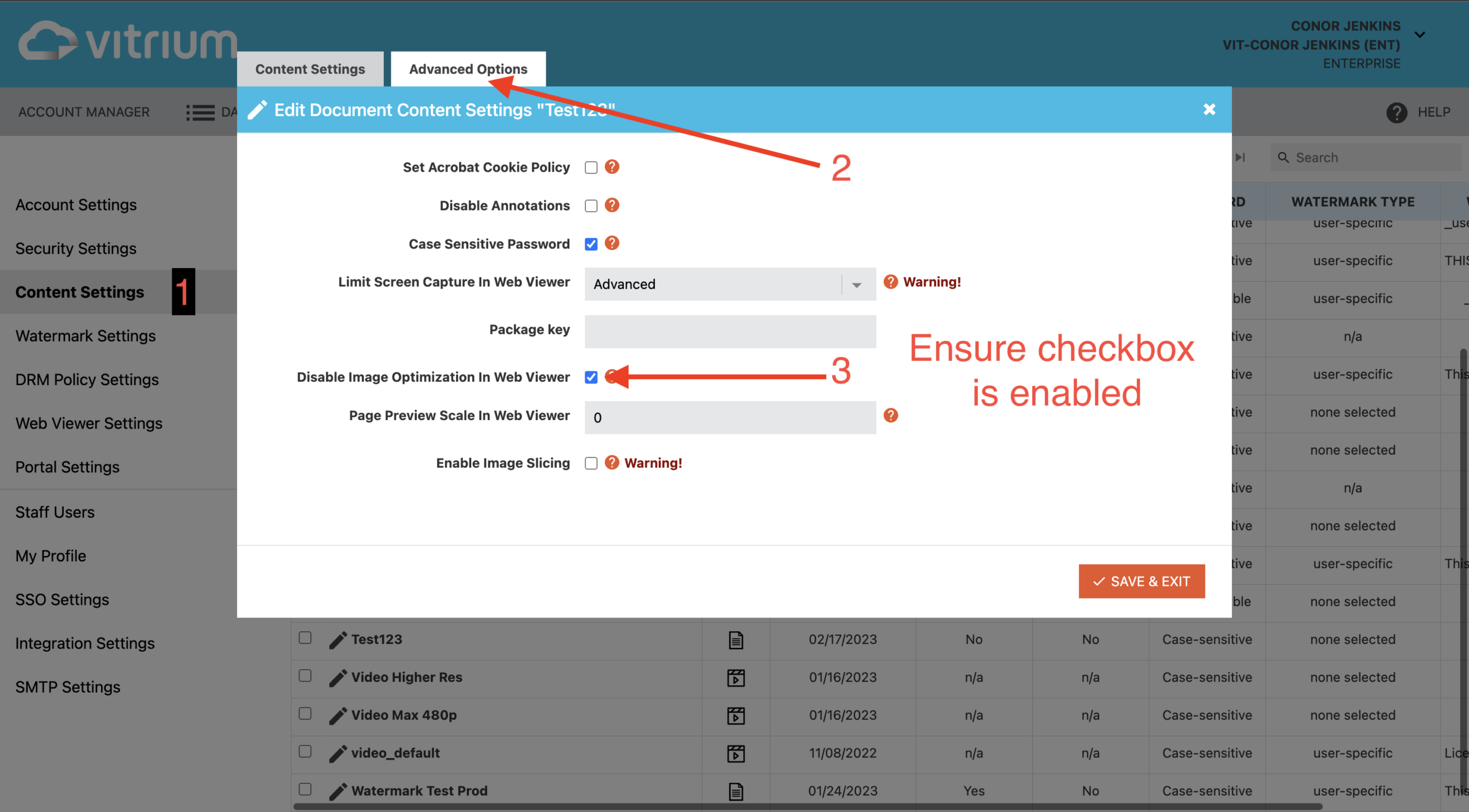
After doing this, refresh the content. If there is no discernible improvement please follow the instructions below to continue troubleshooting.
If you are using Google Chrome, Firefox, Safari or Microsoft Edge navigate to this page for instructions on how to disable hardware acceleration in your browser.
If you have uploaded a PDF file to Vitrium and the images in the web viewer appear distorted, grainy, or have lost some of their original quality compared to the original file, then you may be able to resolve this by optimizing the original PDF file in Adobe.
Try Adobe’s built-in optimization tool in Adobe Acrobat and refer to the following screenshots for our recommended settings.
Alternatively, if you use Adobe InDesign to create your PDF content, click here to review our suggested PDF Export Settings in Adobe InDesign.
Recommended Settings in PDF Optimizer in Adobe Acrobat
Open Adobe Acrobat and navigate to Tools > Optimize PDF. Change the Settings to Custom and update the image settings:
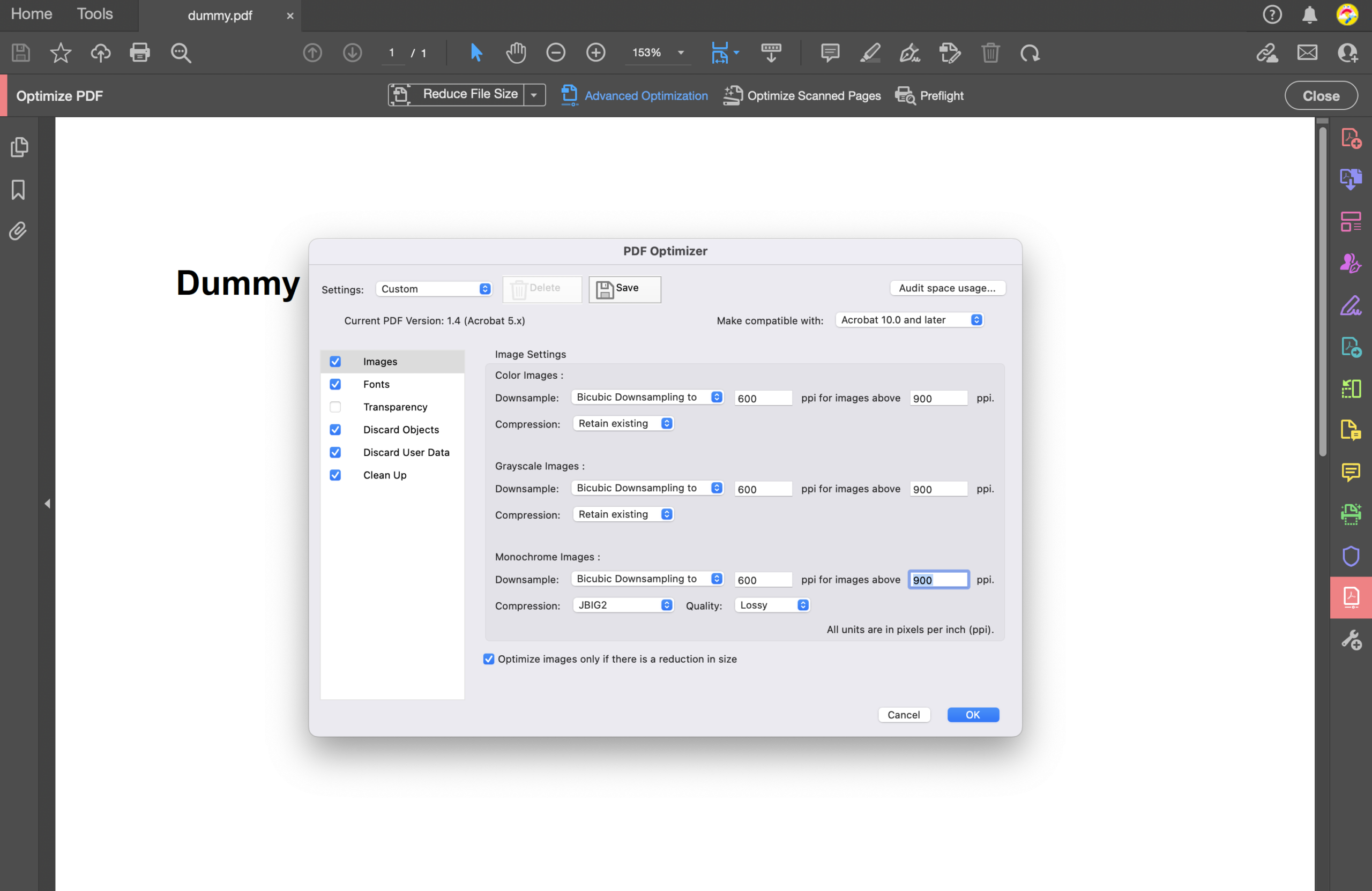
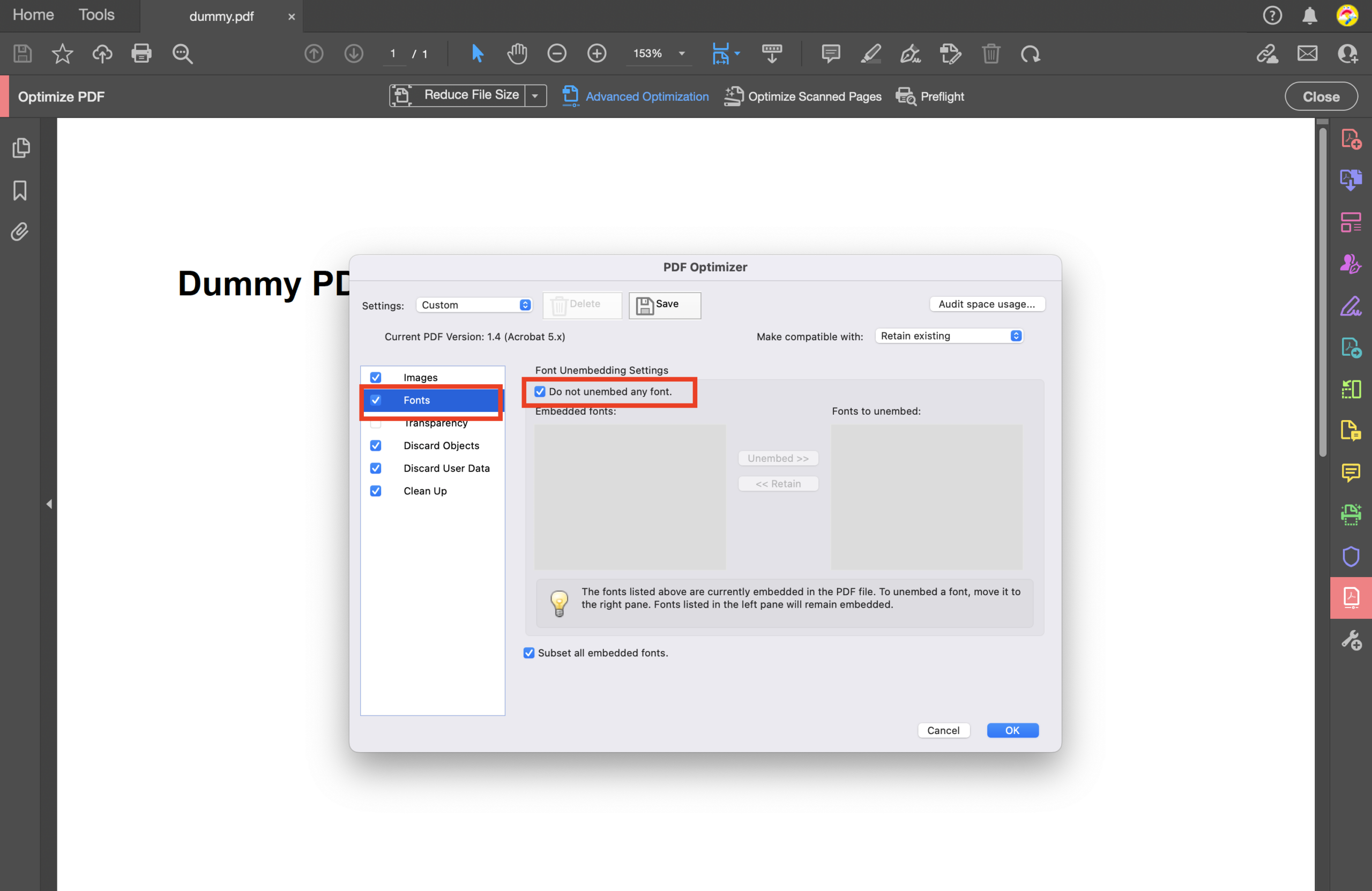
Navigate to fonts and ensure ‘Do not embed any font’ is checked.
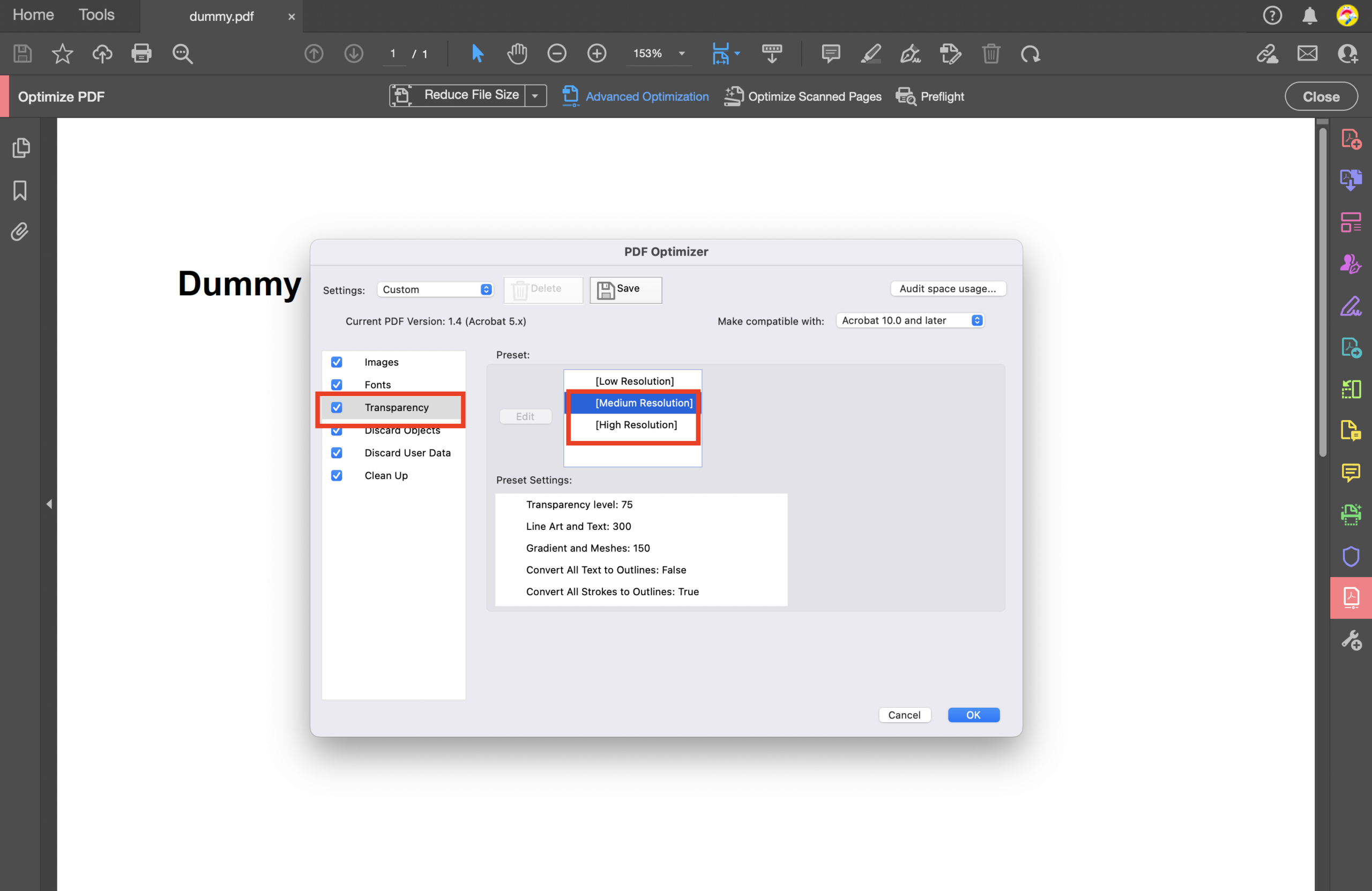
Navigate to Transparency and select medium resolution first. If the conversion fails, revert to high:
Navigate to Discard Objects:
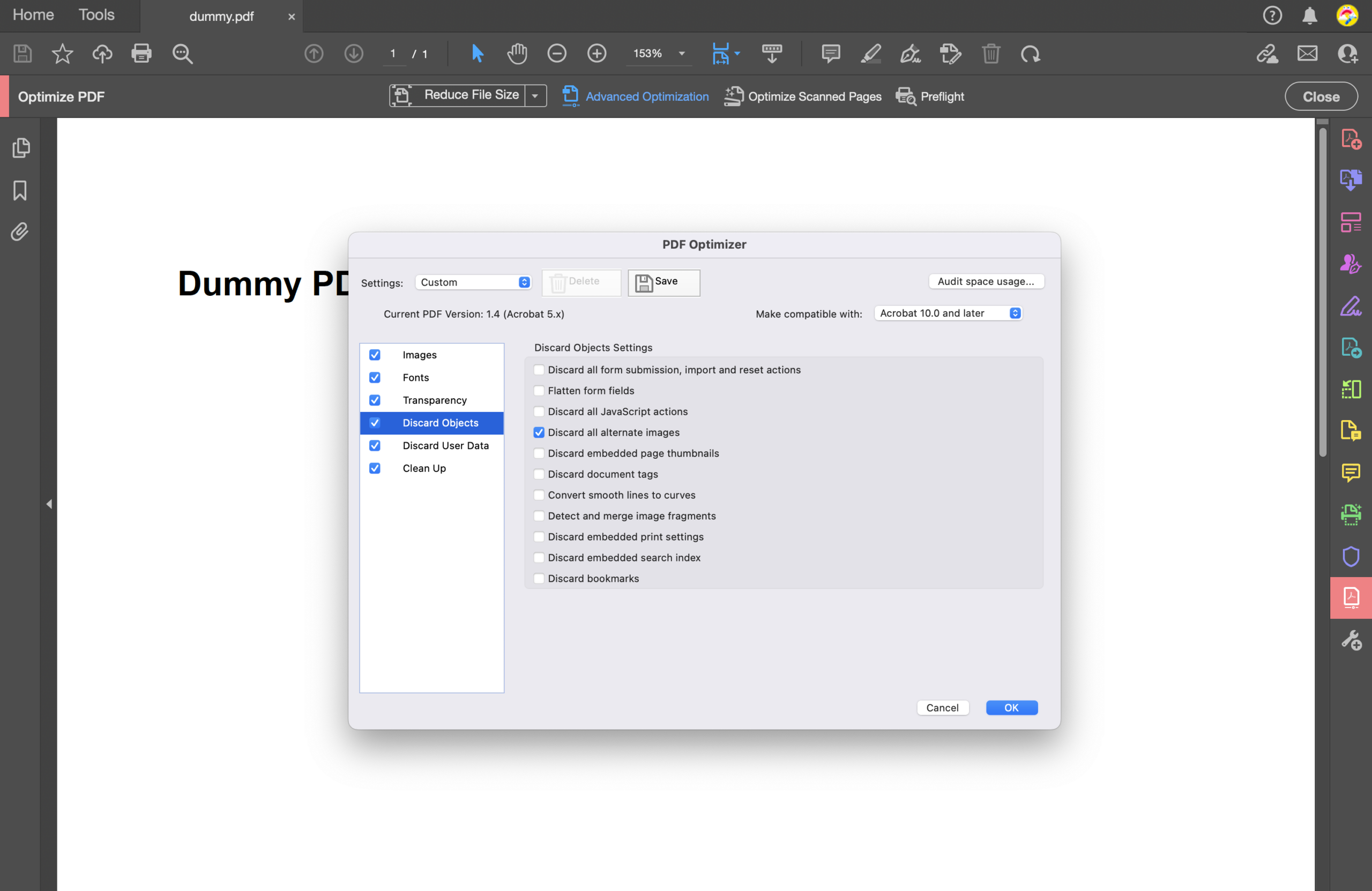
Navigate to Discard User Data and ensure the following is correct:
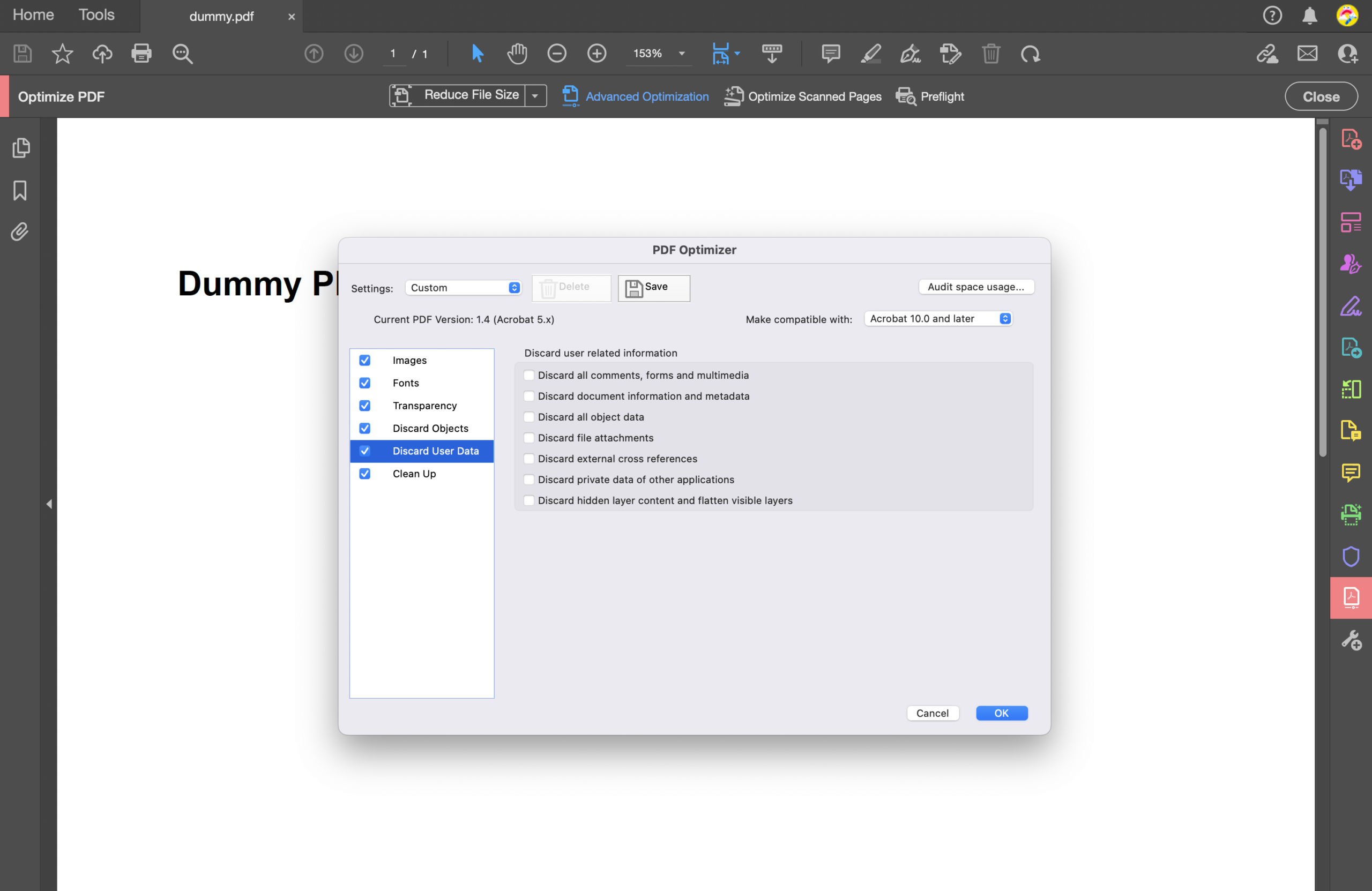
Finally navigate to Clean up:
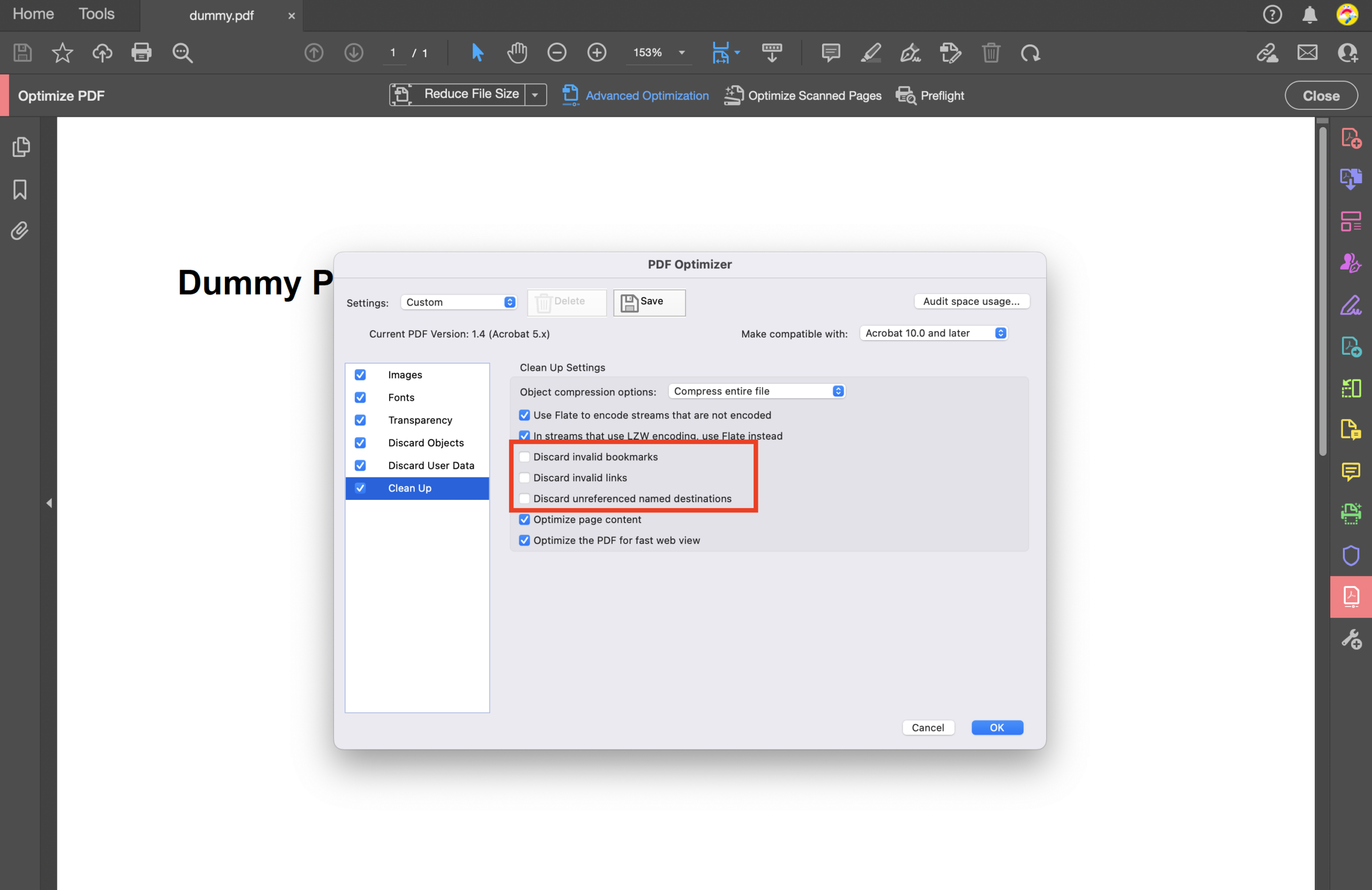
If you tried these settings and it still did not help resolve the distorted images, then please submit a ticket to the Vitrium team and include your original PDF file and a screenshot of the distorted image, if possible.
Only if copy and paste is allowed based on Content Settings. Vitrium’s Accessibility feature now fully supports blocking copy and paste if the Content Setting is set to do so. Click here to read more about Accessibility in the Vitrium Web Viewer.
The device limit in Vitrium Security is based on cookies but that can be a confusing term to people, so Vitrium uses the
term device limit instead. Vitrium tracks a ‘device’ in different ways depending on which encrypted content the user is opening:
For the web viewer and web player, a device is a browser cookie (1 browser = 1 device). For more information on device limits refer to our Admin guide here.